

A correct recording can still teach the wrong phrase if its captions drop a word. Use a short review sheet to compare what learners hear, read and practise.
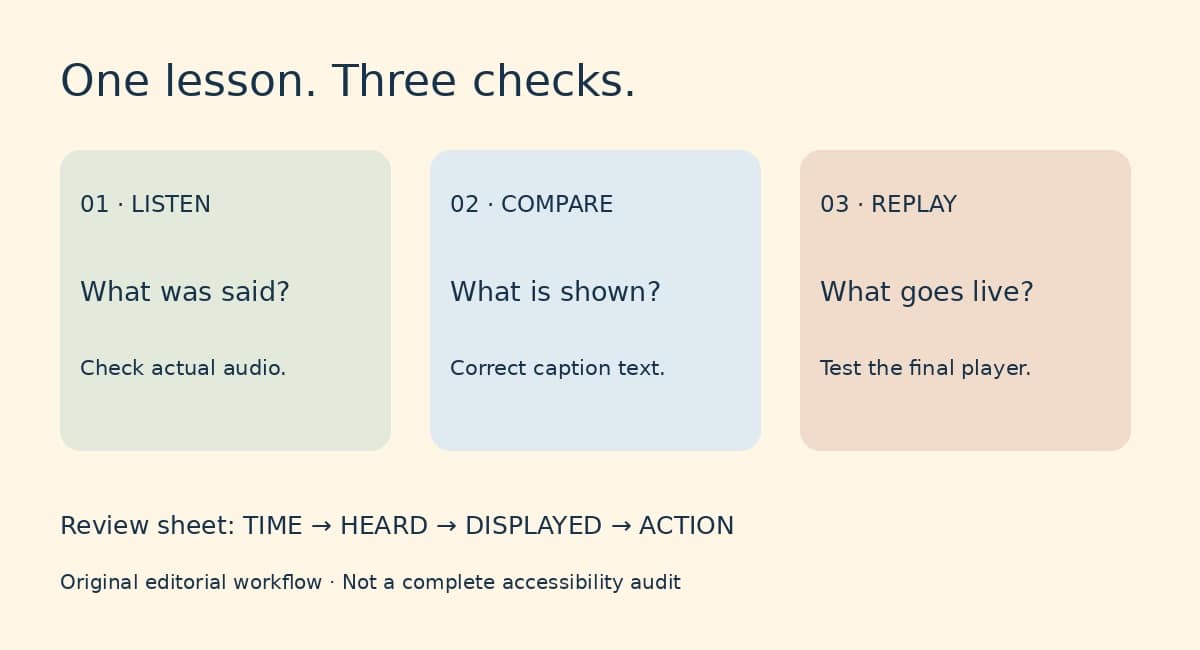
You have recorded a useful lesson. The example is clear, the exercise works, and the video is ready to leave your desk. There is one more version of the lesson to review: the words on screen. Treat that text as teaching material, not a decorative extra added after the real work.
Three different jobs
Captions present spoken information and relevant sounds in time with a video. A transcript makes the content available as readable text outside that timed display. Important visual information may also need description. Automatic captions are a starting point that needs human checking, not proof of accuracy. W3C’s guides explain these distinctions and the accessibility planning involved. This article offers a small editorial workflow, not a complete accessibility audit. W3C: Captions/Subtitles; W3C: Planning Audio and Video Media.
Make a four-column review sheet
Use the headings Time, Heard, Displayed, Action. Review one short section at a time. Under “Heard,” write what is actually spoken, not what your script intended. Under “Displayed,” copy the caption. Under “Action,” record the correction or explain why you are leaving it alone.
Original example: one word changes the task
Heard: “You don’t need to pay today.”
Displayed: “You need to pay today.”
Action: Restore “don’t,” then check the corrected line against the audio.
This invented example is about checking meaning. It is not payment advice or a description of any business policy.
Check the lesson’s high-value words first
Begin with the target phrase, names used in the dialogue, numbers in the exercise and words such as “not,” “before” and “after.” In a lesson about requesting an estimate, the difference between “an estimate” and “the estimate” may be worth discussing. In a pronunciation lesson, replacing an unusual example with a more common word can erase the point of the activity.
Make a small word list before reviewing: the phrases students are expected to practise, the vocabulary introduced, and any repeated names. This is an editorial aid, not permission to rewrite the recording. If the speaker says something incorrectly, decide whether to rerecord it or add a clear teaching correction rather than silently pretending the audio says something else.
Watch once as a learner
Play the corrected section at its normal speed. Can you read the line while seeing the example on screen? Does a caption cover the word the teacher is pointing at? Do you have enough time to follow the instruction before the practice begins? Write down specific moments, such as “the answer appears before the learner’s pause finishes,” rather than the vague verdict “captions feel wrong.”
For a second pass, turn the sound off. Note where meaning depends on information that is now missing. Then listen without looking at the screen and note where an instruction such as “choose this one” has no clear referent. These checks can reveal editing problems; they do not replace testing with people who use different access methods.
Give the transcript a useful structure
Keep the lesson title, example dialogue, instructions and practice task easy to find. Label the speakers consistently. If your video asks a question, leave a visible break before the answer section so a reader can try it first. Put any additional worksheet explanation under a separate heading; do not make it look as if the teacher said it in the recording.
Review the version learners will receive
After uploading, reopen the actual published or preview player. Select the intended captions, play the troublesome examples again, and check the transcript link. A corrected file sitting on your computer is not the same as a corrected lesson on the website.
- The target phrases match the audio.
- Negatives, numbers and speaker labels have been checked.
- Practice pauses still work.
- Text does not conceal essential teaching material.
- The transcript describes the same version of the lesson.
- The page links to the intended video and text.
Save the review date and one sentence about what you changed. The next time you reuse the lesson, you will know which version was checked rather than starting from a folder full of almost-identical files.
